Screenshots
App details
- Version
- 4.36.2 | 4.36.1 | 4.31.2 | 4.29.0 | 4.16...
- Size
- 10.07 MB
- Updated
- December 30, 2024
- Requires
- Windows XP
- Language
- English | German
- License
- Free
- Developer
- Donationcoder
- Category
- Windows OS
SoftPas in:
This product is also available in the following languages:
About Screenshot Captor
Download Screenshot Captor – Free, Secure Screen Capture Tool for Windows, Mac, Android & iOS
Looking for a powerful yet simple way to capture your screen? Screenshot Captor is a free, secure, and highly effective screen capture software designed for Windows users who want to take, edit, and share screenshots with ease. Whether you're creating tutorials, documenting bugs, or sharing content on social media, this versatile tool delivers professional-grade results without the complexity. With support for full-screen, window, region, and scrolling captures, Screenshot Captor gives you complete control over your screen recording process. The app also features a robust built-in editor with drawing tools, text overlays, filters, and even animated GIF creation. Best of all, it’s completely free to download and use, making it one of the best alternatives to the default Windows Snipping Tool. Whether you're on Windows 7, 10, or 11, this lightweight app runs smoothly without hogging system resources.
Powerful Features & Editing Tools You Can’t Miss
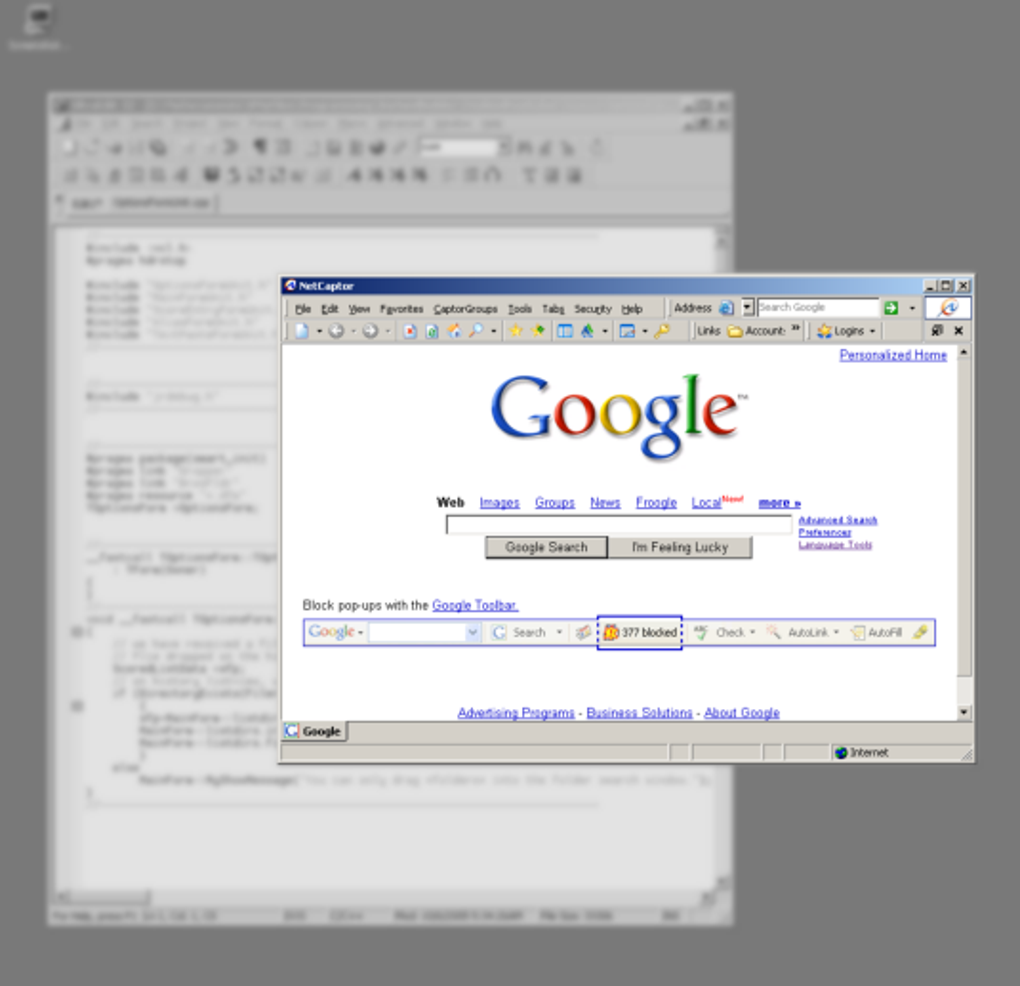
Screenshot Captor stands out from the crowd with a rich set of features that go far beyond basic screen capture. One of its most impressive capabilities is the ability to take scrolling screenshots—perfect for capturing long web pages or lengthy documents in one continuous image. This feature alone makes it a top choice for content creators and technical writers. The app also supports multiple capture modes, including full-screen, active window, custom region, and even delayed captures for precise timing. Once a screenshot is taken, the preview window pops up instantly, giving you the option to accept or discard the image—ideal for avoiding cluttered desktops with unwanted captures.
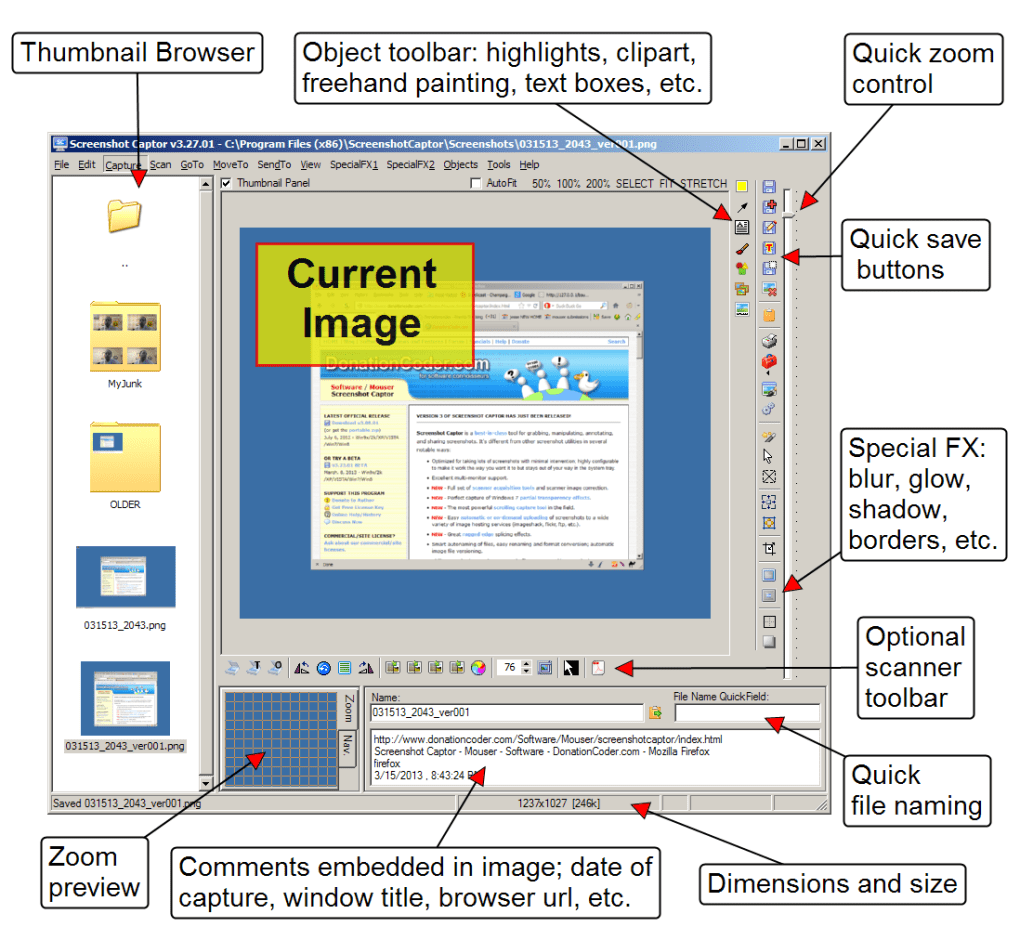
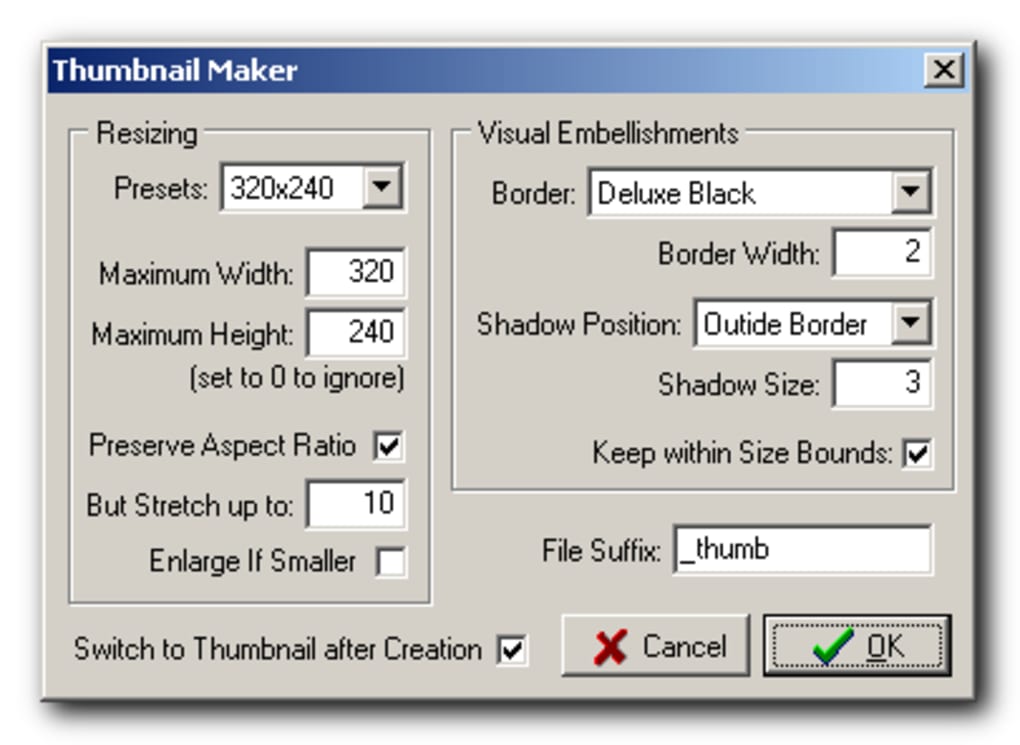
Editing is where Screenshot Captor truly shines. The built-in editor includes a wide array of tools: text annotation, freehand drawing, arrows, shapes, blur effects, shadows, and borders. You can also apply color filters, enhance contrast, and adjust brightness and saturation. For those who need to create engaging content, the ability to export screenshots as animated GIFs is a game-changer—perfect for quick tutorials or social media memes. Additionally, the app supports PDF merging, allowing you to combine multiple screenshots into a single document. Whether you're preparing a presentation or sharing a bug report, Screenshot Captor ensures your visuals are clear, professional, and impactful.
Another standout feature is the taskbar integration. The toolbar is customizable and can be repositioned or hidden, ensuring it doesn’t interfere with your workflow. The app also supports keyboard shortcuts, so you can capture and edit screenshots with minimal mouse movement. For advanced users, there’s even a scripting engine that allows automation of repetitive tasks, such as auto-saving to a specific folder or uploading to cloud storage. All these features are packed into a single, free-to-download application—making Screenshot Captor a must-have tool for anyone who works with visual content.
Easy Installation, Intuitive Usage, and Cross-Platform Compatibility
Getting started with Screenshot Captor is quick and hassle-free. Simply head to the official website, download the installer (available for Windows 7, 8, 10, and 11), and run the setup wizard. The installation process is smooth and doesn’t require admin rights in most cases. Once installed, the app runs in the background and takes control of the Print Screen (PrtScn) key. When you press this key, a shutter sound plays, and a preview window appears—no need to open the app manually every time.
Using Screenshot Captor is intuitive, even for beginners. The main interface is straightforward, with clearly labeled buttons for each capture mode. You can choose to capture the entire screen, a specific window, or a custom region with a simple drag-and-drop. The delayed capture option is especially useful when you need time to open a menu or navigate to a specific screen. After capture, the preview window offers immediate editing options, including saving, printing, sending via email, or uploading to cloud services.
While Screenshot Captor is primarily designed for Windows, users on Mac, Android, and iOS can access similar functionality through cloud-based tools or web versions. However, for full desktop control, Windows remains the best platform. The app is lightweight, consuming minimal RAM and CPU, ensuring your system stays responsive. It also supports custom save locations, file naming conventions, and auto-backup settings—perfect for organizing large volumes of screenshots. Whether you're a student, teacher, developer, or content creator, Screenshot Captor adapts to your workflow seamlessly.
Pros, Cons, and Frequently Asked Questions
- Pros:
- Completely free to download and use
- Supports scrolling, full-screen, window, and region captures
- Powerful built-in editor with filters, text, drawing, and GIF creation
- Auto-save to customizable folders with naming rules
- Supports multiple formats: PNG, JPEG, BMP, PDF, GIF
- Lightweight and fast, minimal system impact
- Keyboard shortcuts and taskbar integration
- Scripting support for automation
- Cons:
- Interface feels outdated and slightly cluttered
- Limited native support for Mac, Android, and iOS
- No built-in OCR (text recognition) feature
- Advanced features may overwhelm beginners
- Occasional update notifications can be intrusive
Frequently Asked Questions (FAQ)
- Is Screenshot Captor really free?
Yes, Screenshot Captor is completely free to download and use. There are no hidden costs or premium tiers. The developer offers the software as a gift to the community, with optional donations to support future updates.
- Can I use Screenshot Captor on Windows 11?
Absolutely. Screenshot Captor is fully compatible with Windows 11, as well as Windows 10, 8, and 7. It runs smoothly on both 32-bit and 64-bit systems.
- Does Screenshot Captor support animated GIFs?
Yes, you can export screenshots as animated GIFs. This feature is ideal for creating quick tutorials, memes, or highlighting interactive elements on your screen.
- Can I edit screenshots directly after capture?
Yes, after capturing your screen, a preview window appears with editing tools. You can crop, annotate, draw, add text, apply filters, and more—all within the app.
- Is there a mobile version for Android or iOS?
Screenshot Captor is currently only available for Windows. However, you can use third-party apps or cloud sync tools to access your captures on mobile devices.
Final Verdict: A Must-Have Free Screen Capture Tool
Screenshot Captor is more than just a screen capture tool—it’s a complete visual workflow solution. With its powerful editing features, multiple capture modes, and seamless integration with Windows, it outperforms many paid alternatives. While the interface may feel dated, the functionality more than makes up for it. Whether you're a student documenting assignments, a developer reporting bugs, or a content creator making tutorials, this software delivers professional results without costing a penny.
If you're looking for a reliable, secure, and feature-rich way to capture your screen, download Screenshot Captor today. It’s a lightweight, free, and highly effective tool that’s trusted by thousands worldwide. Don’t miss out on this powerful addition to your digital toolkit—start capturing, editing, and sharing your screen with confidence.
Guides & Tutorials
How to install Screenshot Captor
- Click the Download button above.
- Once redirected, accept the terms and click Install.
- Wait for the Screenshot Captor download to finish on your device.
How to use Screenshot Captor
This software is primarily used for its core features described above. Open the app after installation to explore its capabilities.
User Reviews
No reviews yet. Be the first to share your experience.
You may also like
more
Llama 2
Free-to-use large language model As the new addition to Meta’s arsenal of langua...

NotebookLM
Revolutionizing the note-taking and idea-generation process NotebookLM is an exp...

Github co pilot
AI-inspired software development and coding platform GitHub Copilot is a browser...

Google Gemma
Google’s lightweight AI models Introducing Google Gemma , a family of cutting-ed...

AI Image Enlarger
A free app for Windows, by ai-image-larger. AI Image Enlarger is a free software...

DALL E
AI-driven text-to-image transformation engine DALL·E is a free graphic and desig...